FolderToLLM is a PowerShell-based utility for Windows designed to help you gather and consolidate project files into a single text file. This output is particularly useful for providing context to Large Language Models (LLMs) by including the directory structure and the content of selected files.
The script will:
- Traverse a specified root directory (defaults to the current directory).
- Generate a text representation of the entire directory structure.
- Concatenate the content of all (or filtered) files found within that structure.
- Offer various filtering options to include/exclude specific folders, file extensions, and files based on size.
- Output everything into a timestamped
.txtfile (e.g.,LLM_Output_YYYYMMDDHHMMSS.txt) in the root directory.
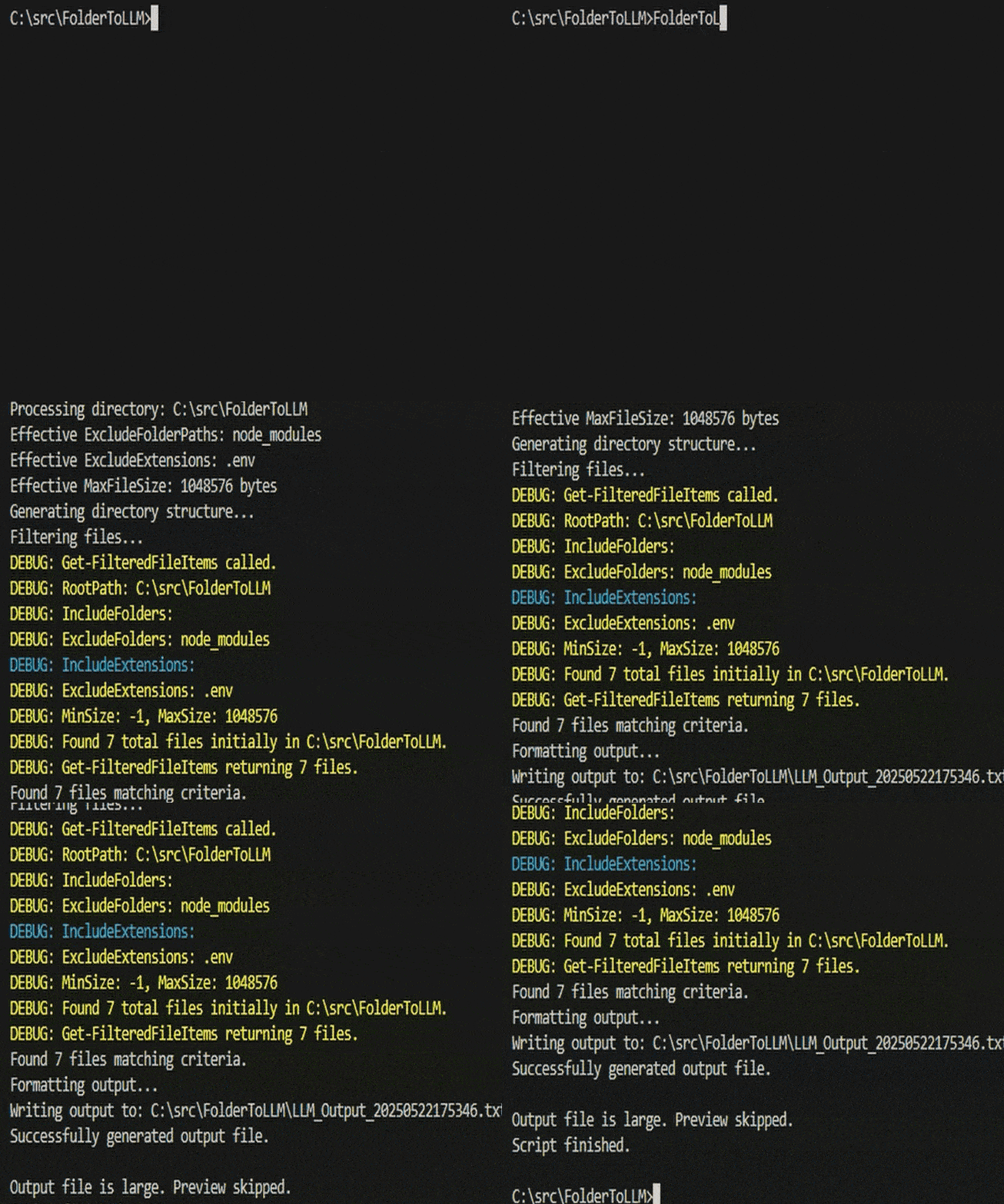
- Interactive Configuration Menu: Run without arguments to open a visual menu for configuring all options.
- Fast Mode (
-f): Quickly re-run with your last saved configuration. - Gitignore Integration: Automatically exclude files and folders listed in your
.gitignore. - Persistent Configuration: Save your settings for quick access later.
- Directory Structure Output: Visual tree-like representation of folders and files.
- File Content Aggregation: Reads and appends the content of each selected file.
- Flexible Filtering:
- Include/exclude specific folders (relative to the root path).
- Include/exclude specific file extensions (e.g.,
.txt,.py). - Include/exclude files based on minimum or maximum size (in bytes).
- Default Exclusions: By default, it excludes:
node_modules,.git,build,dist, and other common folders..env,.log, binary files, and more.- Files larger than 1MB. (These defaults can be customized via the menu or command-line arguments).
- Safe Content Reading: Attempts to identify and skip binary files, and truncates very large text files to prevent memory issues.
- Easy Execution: Can be run directly or via a helper batch file for convenient access from any directory.
- Windows Operating System.
- PowerShell (usually comes pre-installed with Windows).
The easiest way to use FolderToLLM from any directory is by using the provided folderToLLM.bat helper script and adding its location to your system's PATH environment variable.
-
Download/Clone the Repository: Download all the
.ps1files and thefolderToLLM.batfile from this repository into a single directory on your computer. For example, you might create a folder likeC:\Tools\FolderToLLM. -
Add the Script Directory to PATH (Recommended): To run
folderToLLMfrom any command line or PowerShell window:- Search for "environment variables" in the Windows search bar and select "Edit the system environment variables."
- In the System Properties window, click the "Environment Variables..." button.
- Under "System variables" (or "User variables" if you only want it for your account), find the variable named
Pathand select it. - Click "Edit...".
- Click "New" and add the path to the directory where you saved
folderToLLM.batand the.ps1scripts (e.g.,C:\Tools\FolderToLLM). - Click "OK" on all open dialogs to save the changes.
- You might need to restart any open Command Prompt or PowerShell windows for the PATH changes to take effect.
-
Ensure Script Encoding (Important for Special Characters): All
.ps1script files (CollectAndPrint.ps1,Get-DirectoryStructure.ps1, etc.) should be saved with UTF-8 with BOM encoding. This is crucial for correctly displaying tree characters and handling various text encodings. Most modern text editors (like VS Code, Notepad++) allow you to save files with this specific encoding.- In VS Code: Click the encoding in the bottom-right status bar, select "Save with Encoding," then choose "UTF-8 with BOM."
- In Notepad: "File" > "Save As...", then choose "UTF-8 with BOM" from the "Encoding" dropdown.
Simply run the command without any arguments to open the interactive configuration menu:
folderToLLMThis will display a menu like:
  =======================================================
  |           FolderToLLM Configuration Menu            |
  =======================================================

  -------------------------------------------------------
  | Current Settings:
  -------------------------------------------------------
  | (1) Root Path: C:\Projects\MyApp
  | (2) Use .gitignore: ON
  | (3) Exclude Folders: node_modules, .git, dist
  | (4) Exclude Extensions: .env, .log
  | (5) Include Extensions: (all files)
  | (6) Max File Size: 1.0 MB
  -------------------------------------------------------

  | (R) RUN - Generate Output
  | (S) Save Config (for -f mode)
  | (Q) Quit
  -------------------------------------------------------
Menu Options:
- Press
1-6to modify settings - Press
Rto run and generate output (also auto-saves config) - Press
Sto save configuration for later use with-f - Press
Qto quit
After configuring your settings once, you can quickly re-run with the same configuration:
folderToLLM -fThis loads the last saved configuration and immediately generates output without showing the menu.
You can still use command-line arguments for automation or scripts. When arguments are provided, the menu is skipped:
folderToLLM -ExcludeFolderPaths ".git", "node_modules" -MaxFileSize 512000When .gitignore usage is enabled (default: ON), the tool will:
- Look for a
.gitignorefile in your root directory - Parse all patterns (folders and file patterns)
- Automatically add them to the exclusion list
- Exclude matching files from both the directory tree AND file contents
This means folders like node_modules/, files like *.log, and patterns from your .gitignore are automatically excluded.
To toggle this feature:
- In the menu: Press
2to toggle ON/OFF - Via command-line: The setting is saved in the config file
Your settings are saved to folderToLLM.config.json in the script directory. This file stores:
useGitignore: Whether to parse and use.gitignorepatternsexcludeFolders: List of folders to excludeexcludeExtensions: List of file extensions to excludeincludeFolders: List of folders to include (whitelist)includeExtensions: List of extensions to include (whitelist)maxFileSize: Maximum file size in bytesminFileSize: Minimum file size in bytesoutputPrefix: Prefix for output file names
The CollectAndPrint.ps1 script (and thus folderToLLM.bat) accepts the following optional arguments:
-Fastor-f: Use the last saved configuration without showing the menu.-NoMenu: Skip the menu and use command-line parameters (legacy mode).-RootPath <string>: The root directory to process. Defaults to the current directory.- Example:
folderToLLM -RootPath "C:\Projects\MyWebApp"
- Example:
-IncludeFolderPaths <string[]>: Comma-separated list of relative folder paths to include.- Example:
folderToLLM -IncludeFolderPaths "src", "docs"
- Example:
-ExcludeFolderPaths <string[]>: Comma-separated list of relative folder paths to exclude.- Example:
folderToLLM -ExcludeFolderPaths ".git", "dist", "build"
- Example:
-IncludeExtensions <string[]>: Comma-separated list of file extensions to include.- Example:
folderToLLM -IncludeExtensions ".js", ".css"
- Example:
-ExcludeExtensions <string[]>: Comma-separated list of file extensions to exclude.- Example:
folderToLLM -ExcludeExtensions ".log", ".tmp", ".bak"
- Example:
-MinFileSize <long>: Minimum file size in bytes. Use-1for no limit.- Example:
folderToLLM -MinFileSize 1024
- Example:
-MaxFileSize <long>: Maximum file size in bytes. Use-1for no limit.- Example:
folderToLLM -MaxFileSize 512000
- Example:
-OutputFileNamePrefix <string>: Prefix for the generated output file.- Example:
folderToLLM -OutputFileNamePrefix "ProjectAlpha_Snapshot"
- Example:
-
Open interactive menu to configure and run:
folderToLLM
-
Quick run with last saved settings:
folderToLLM -f
-
Process a specific project with command-line arguments:
folderToLLM -RootPath "D:\MyPythonProject" -IncludeExtensions ".py", ".md" -ExcludeFolderPaths ".venv"
-
Process the current directory, excluding files larger than 50KB:
folderToLLM -MaxFileSize 51200 -ExcludeExtensions ".zip"
The utility is composed of several PowerShell scripts, each with a specific responsibility:
| Script | Description |
|---|---|
CollectAndPrint.ps1 |
Main orchestrator - handles modes, parameters, and coordinates all scripts |
folderToLLM.bat |
Batch file wrapper for easy execution from any directory |
Show-InteractiveMenu.ps1 |
Interactive configuration menu with keyboard navigation |
Config-Manager.ps1 |
Handles loading, saving, and managing configuration |
Get-GitignorePatterns.ps1 |
Parses .gitignore files and extracts exclusion patterns |
Get-DirectoryStructure.ps1 |
Generates the formatted directory tree string |
Get-FilteredFiles.ps1 |
Filters files based on the provided criteria |
Read-TextFileContent.ps1 |
Safely reads text files with binary detection |
Format-OutputString.ps1 |
Assembles the final output string |
-
"Failed to load helper scripts...":
- Ensure all
.ps1files are in the same directory asCollectAndPrint.ps1. - The batch file now auto-detects its location, so no manual path configuration is needed.
- Ensure all
-
Garbled characters in directory structure (e.g.,
â""â"€â"€):- Ensure all
.ps1files are saved with UTF-8 with BOM encoding. This is the most common cause.
- Ensure all
-
"The term ... is not recognized as the name of a cmdlet...":
- This usually means a helper script/function was not loaded correctly. Check file paths and ensure all
.ps1files are present and correctly encoded. - Restart your PowerShell/Command Prompt window after making changes to scripts or PATH.
- This usually means a helper script/function was not loaded correctly. Check file paths and ensure all
-
Filters not working as expected:
- Uncomment the
Write-Hostdebug lines withinGet-FilteredFiles.ps1to see detailed information about how each file is being processed.
- Uncomment the
-
Menu not displaying correctly:
- Make sure you're running in a proper terminal (PowerShell or Command Prompt), not from within another application.
- Try running
chcp 65001before running the command to enable UTF-8 in the console.